Download a sales report (PDF or CSV)
Web & iOS 1 min read
Pick a week, a month or your own dates, then download a PDF to print or a CSV for a spreadsheet.
Your accountant wants the month. Your partner wants the week. Give them a file, not a screenshot.
Download it
- Open Sales, on the web or in the app.
- Tap Download report.
- Pick the period: This week, This month, Last month, or Custom with your own dates.
- Pick the format: PDF (to print) to print or send, or CSV (spreadsheet) to open in Excel or Google Sheets.
- Tap download.
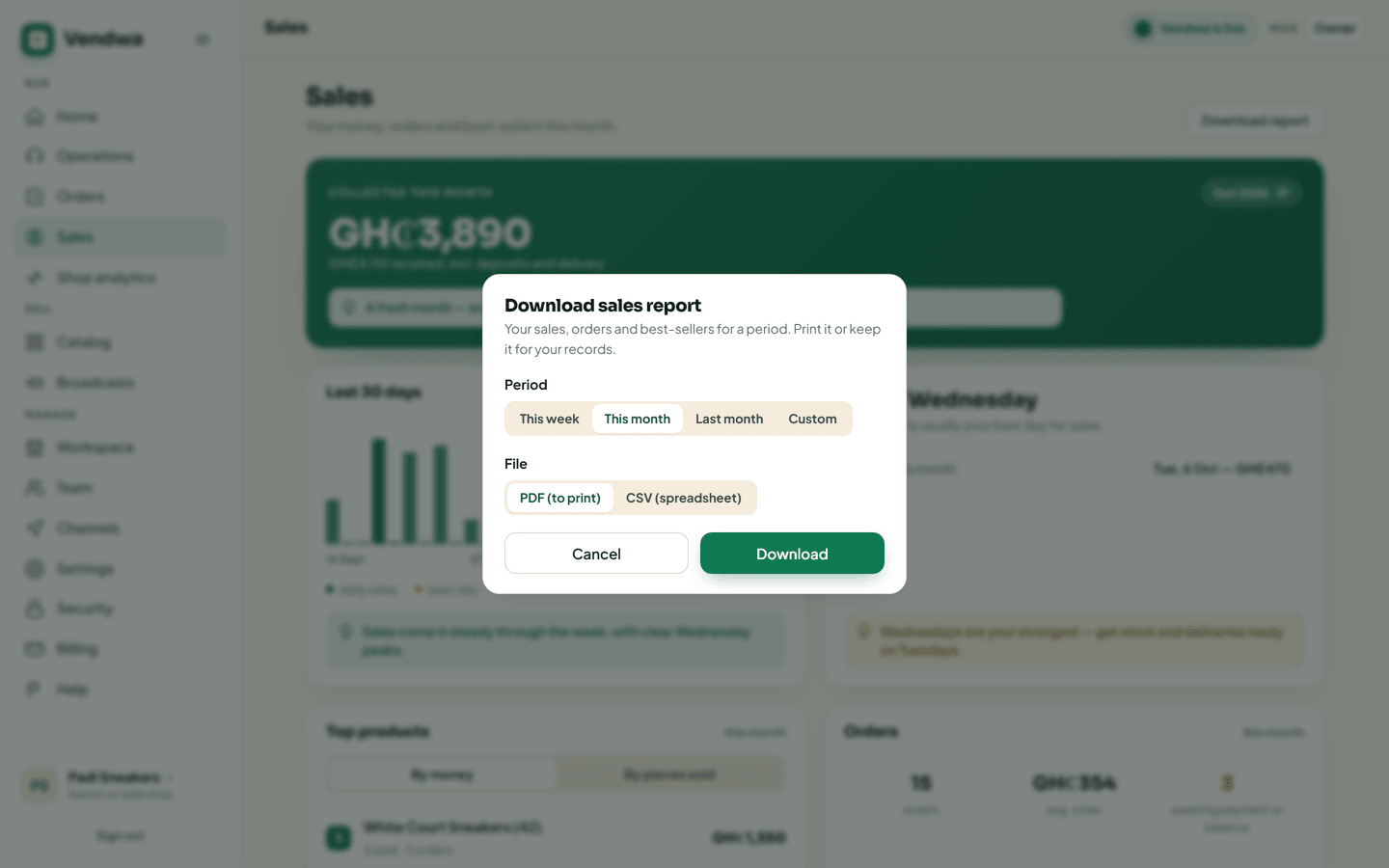
Weeks start on Monday.
What is in it
- Every order in the period: paid, delivered, and still awaiting payment, so you can see who still owes. Each row has the date, customer, items, total, status, how it was paid, and the channel.
- Cancelled orders, listed apart.
- The money collected in the period.
- Where your orders came from, with any ad spend you added.
Part-paid orders are listed and marked Part paid. The sales figures come from the same place as your Sales screen, so the two agree.
Good to know
- Only owners and managers can download a report.
- The report has your customers' names on it. Share it only with people who need it.
- Need your full customer list instead? See Export your customers.
Was this helpful?
We read every answer. We do not ask for your name.